# Set up local pickup

## Setting up your locations

{% hint style="success" %}

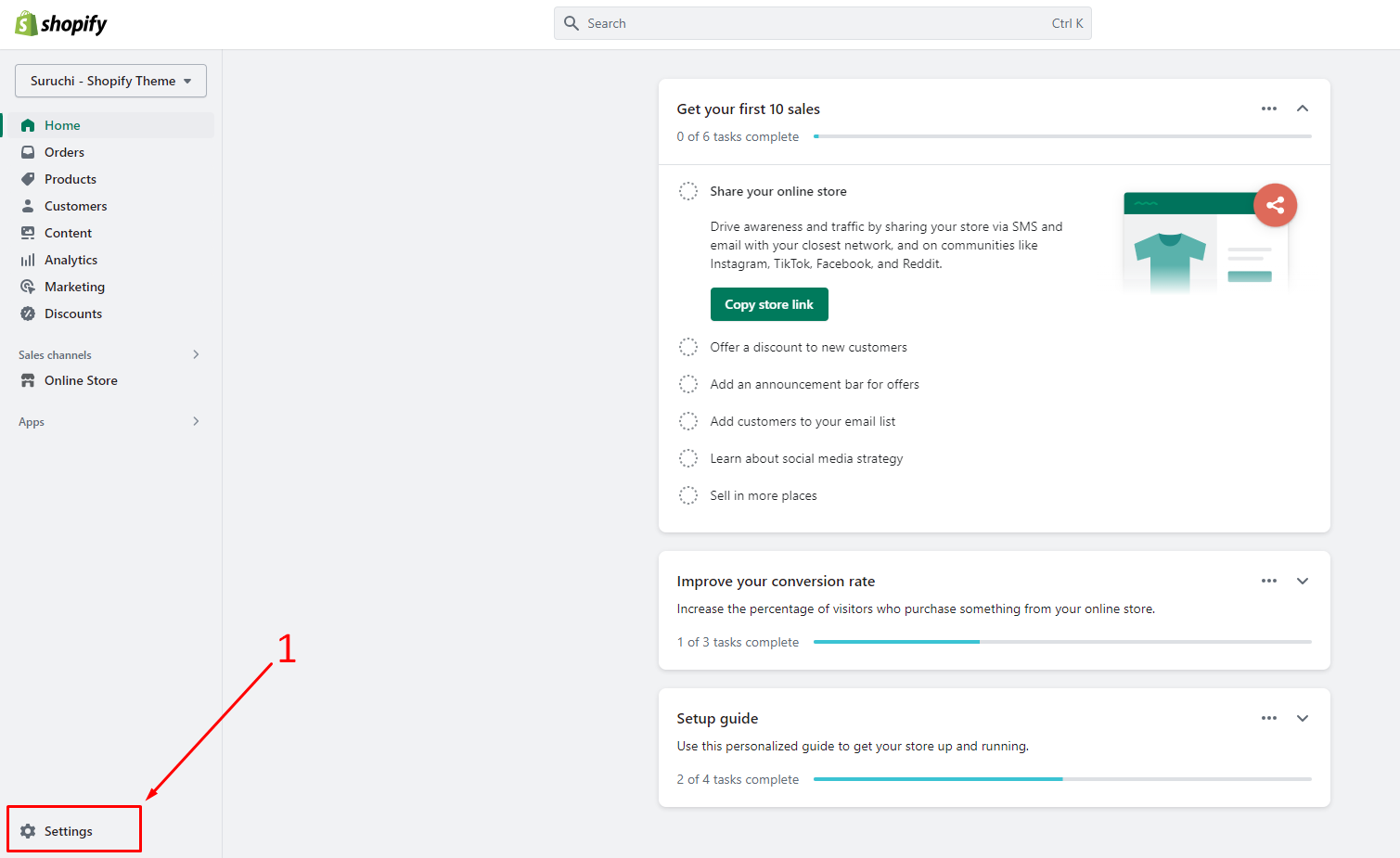
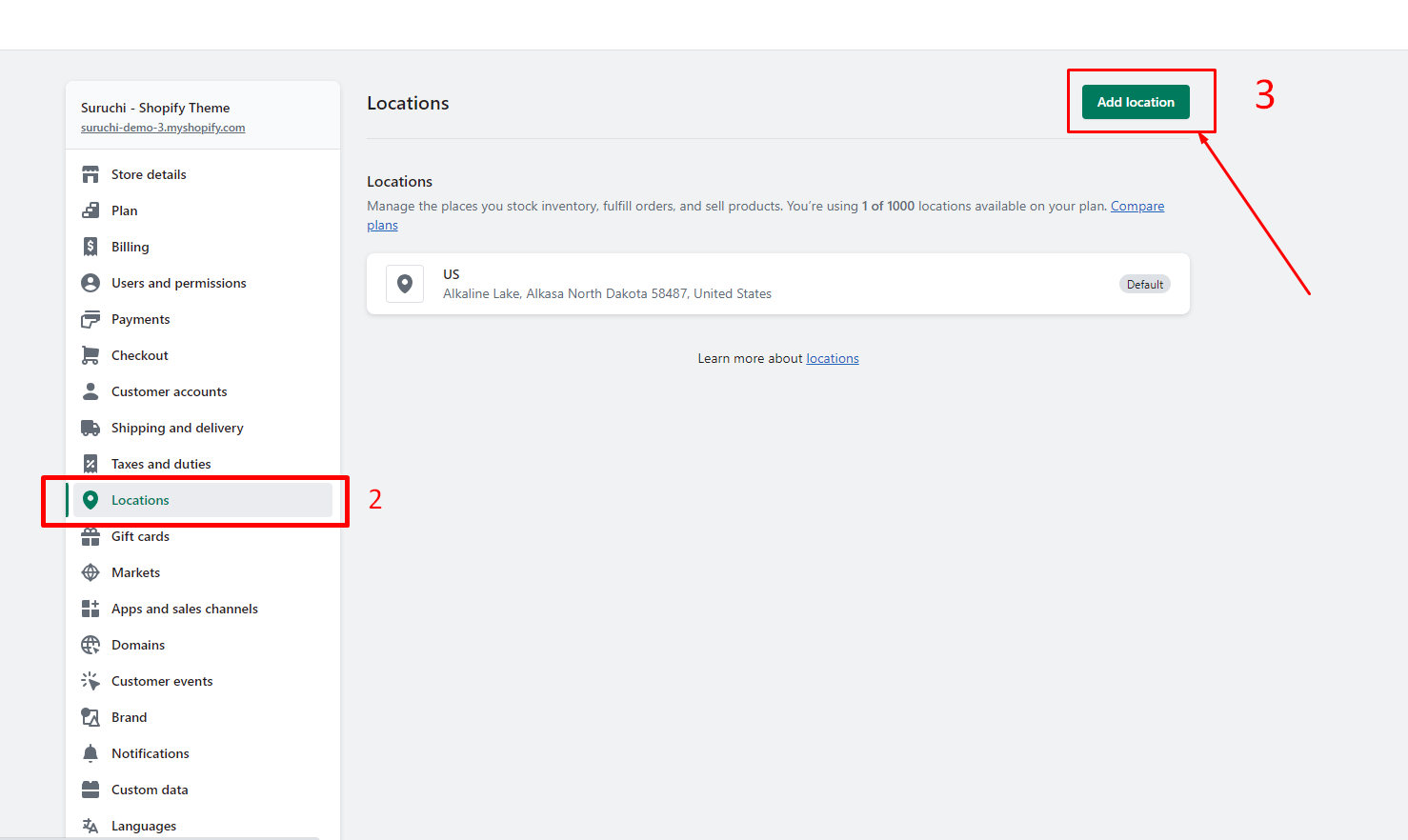
1. From your Shopify admin, go to **Settings** > [**Locations**](https://www.shopify.com/admin/settings/locations).
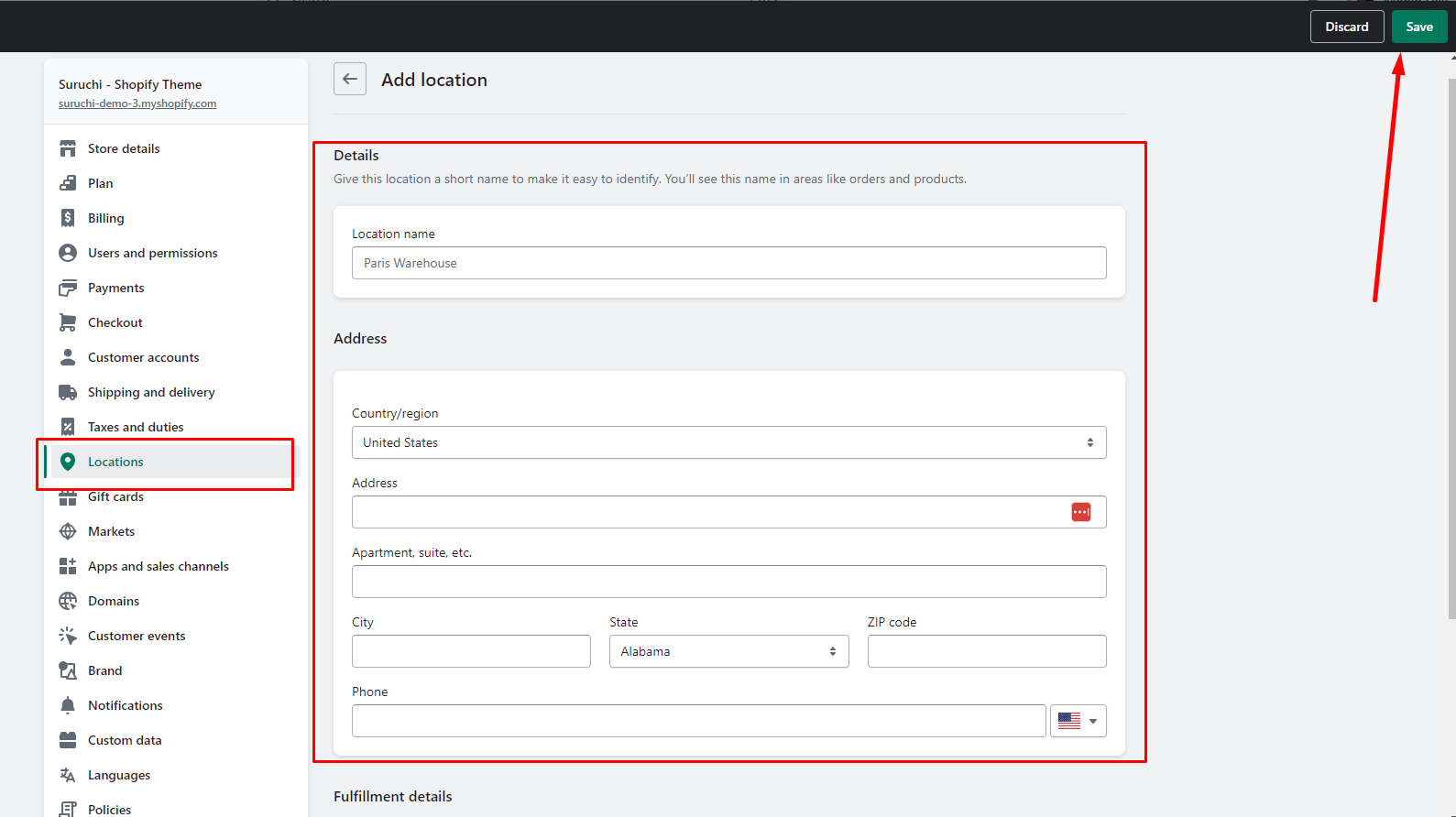
2. Click **Add location**.
3. Enter a unique name and an address for the location.
4. If you want the inventory at this location to be available for online purchases, then select **Fulfill online orders from this location**.
5. Click **Save**.
6. **\[**[**Learn more**](https://help.shopify.com/en/manual/locations/setting-up-your-locations)**]**
   {% endhint %}

### Step 1

<figure><img src="https://content.gitbook.com/content/TsBtmFQxtPZrKf7veaAQ/blobs/qwqDGhT58WKo4i75zOM4/settings_local_pickup.png" alt=""><figcaption></figcaption></figure>

### Step 2

<figure><img src="https://content.gitbook.com/content/TsBtmFQxtPZrKf7veaAQ/blobs/Dva5HkhmgIEJvPjcbulP/location.png" alt=""><figcaption></figcaption></figure>

### Step 3

<figure><img src="https://content.gitbook.com/content/TsBtmFQxtPZrKf7veaAQ/blobs/eegNnQHjx8sp112mXuDj/add_location.png" alt=""><figcaption></figcaption></figure>

## Enable Local Pickup

### step 1

<figure><img src="https://content.gitbook.com/content/TsBtmFQxtPZrKf7veaAQ/blobs/qwqDGhT58WKo4i75zOM4/settings_local_pickup.png" alt=""><figcaption></figcaption></figure>

### step 2

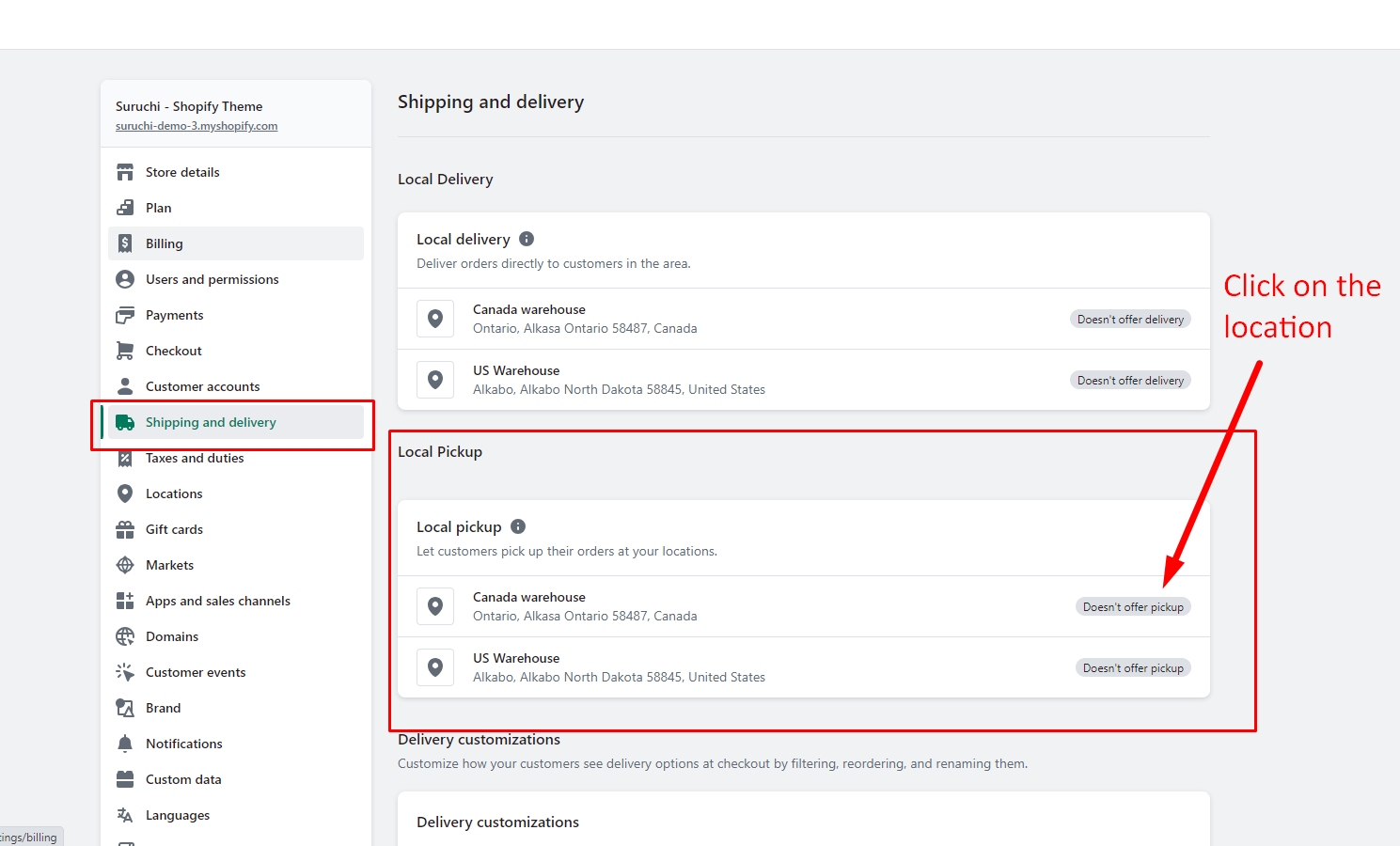
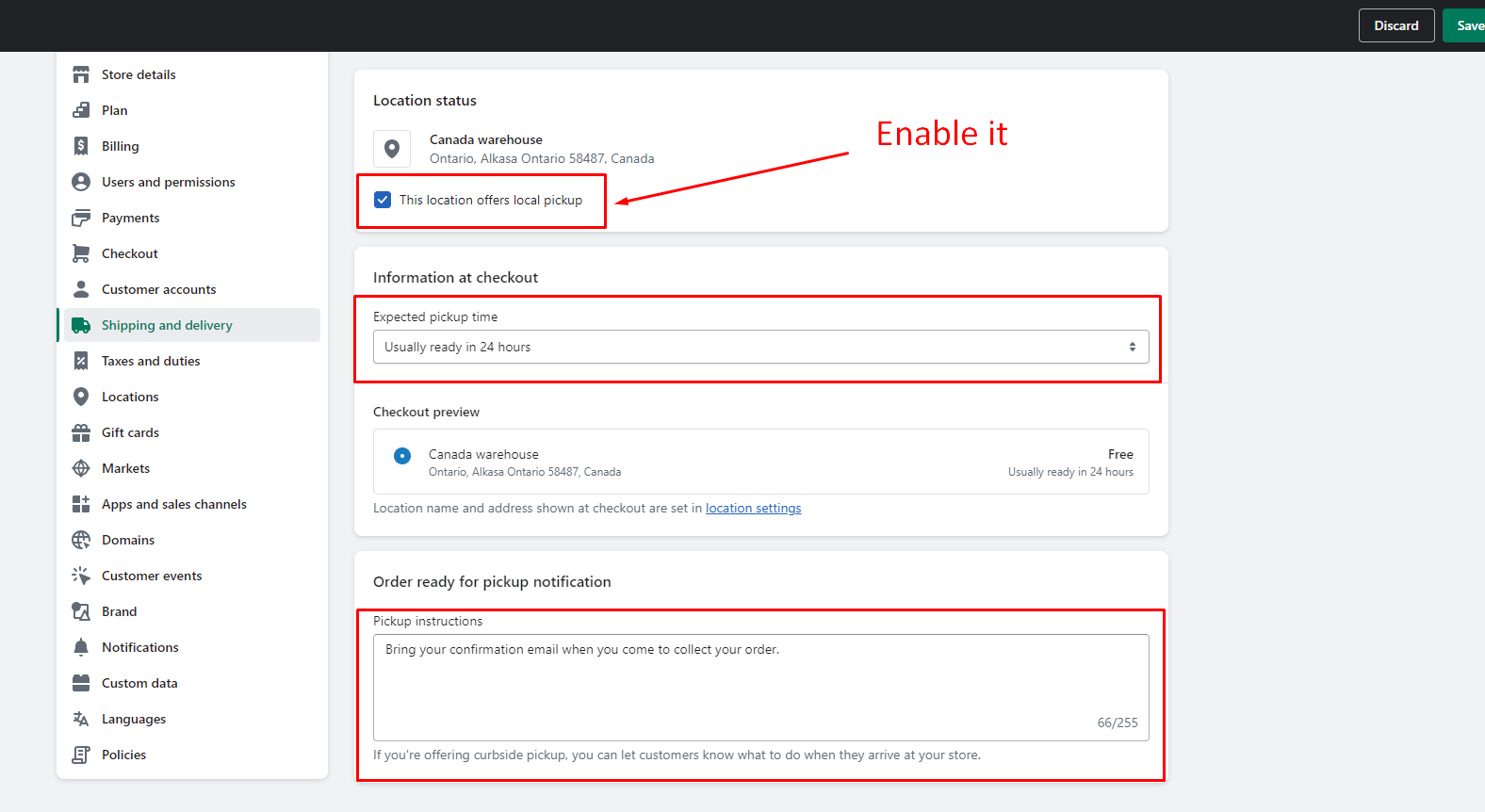
<figure><img src="https://content.gitbook.com/content/TsBtmFQxtPZrKf7veaAQ/blobs/E9OLHeDquukKV7ag0bkw/local_pickup_point-2.png" alt=""><figcaption></figcaption></figure>

### step 3

<figure><img src="https://content.gitbook.com/content/TsBtmFQxtPZrKf7veaAQ/blobs/F1ym3JT8YeiBTsHDKT63/local_pickup_3.png" alt=""><figcaption></figcaption></figure>

### step 4

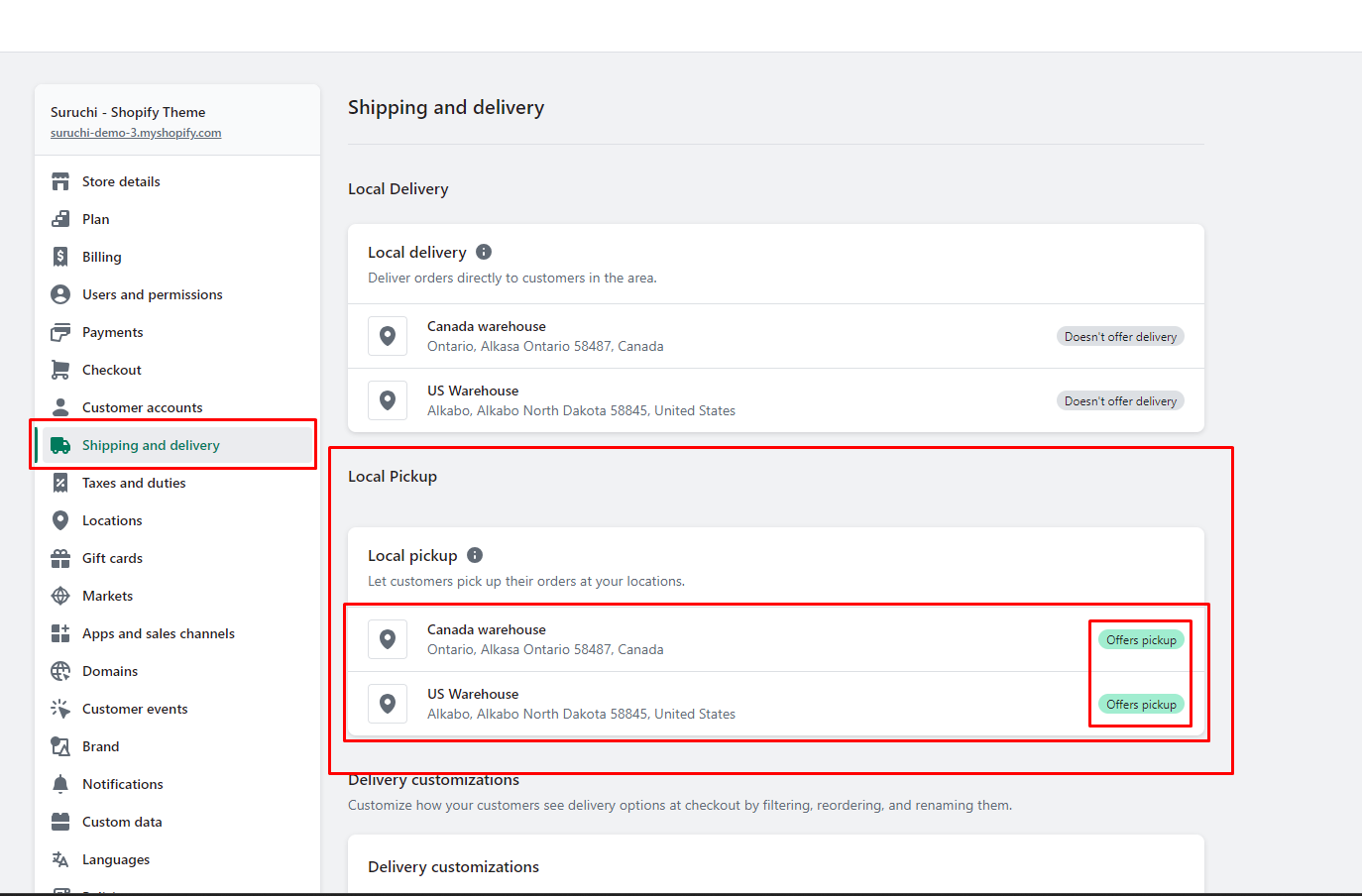
<figure><img src="https://content.gitbook.com/content/TsBtmFQxtPZrKf7veaAQ/blobs/sF634D1vog0nslPlok7Z/done_local_pickup.png" alt=""><figcaption></figcaption></figure>

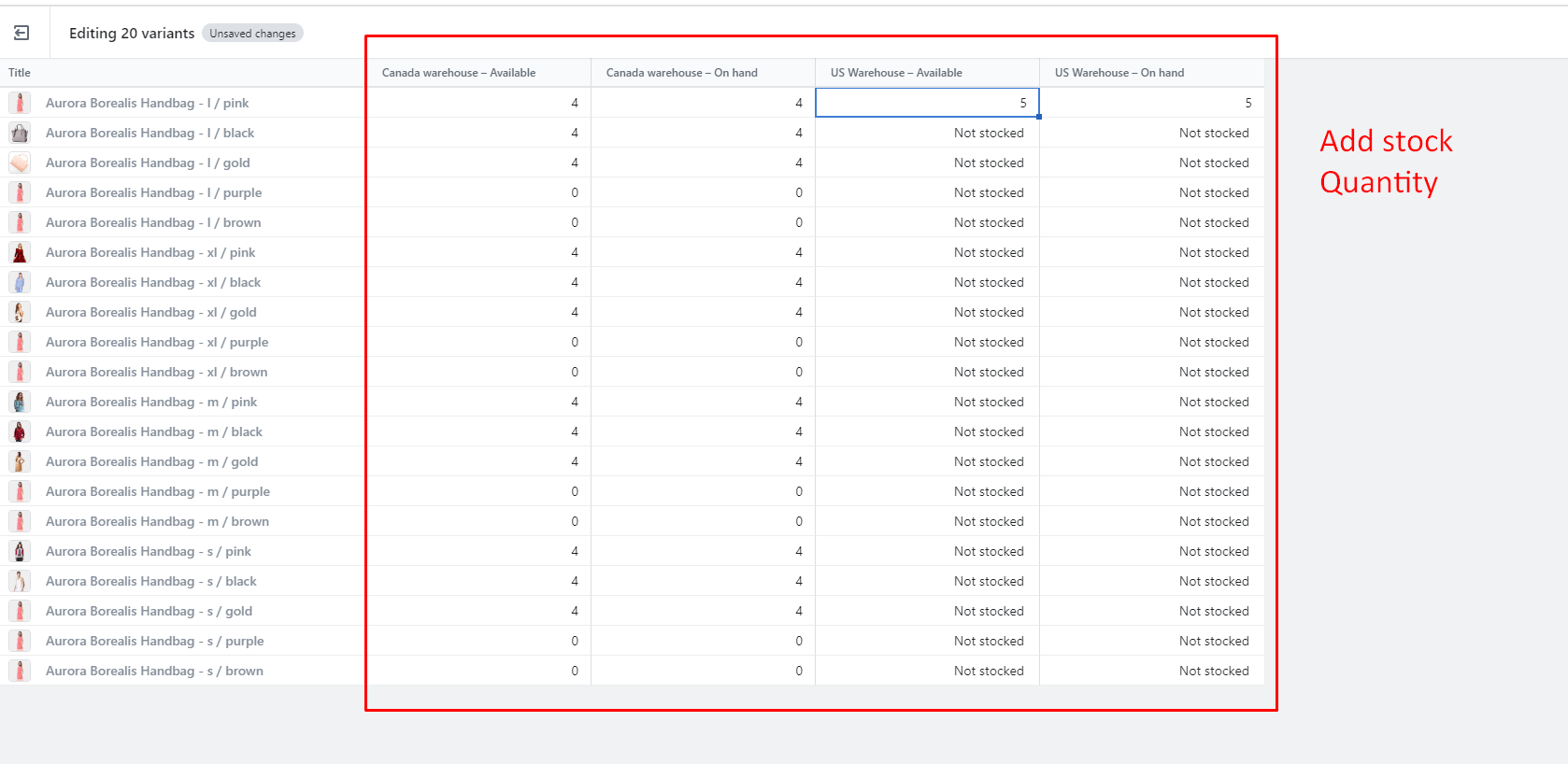
## Assigning inventory to locations

{% hint style="success" %}

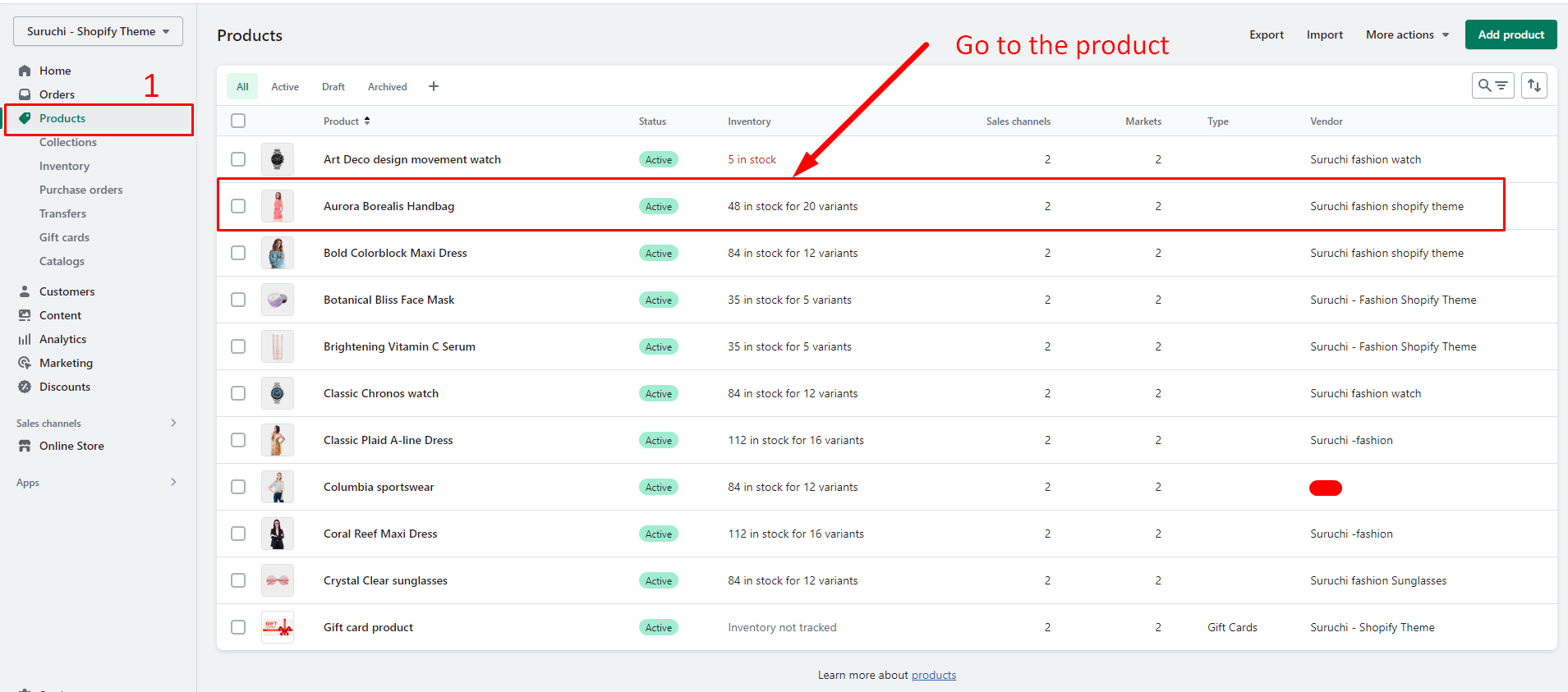
1. Go to [**Products**](https://www.shopify.com/admin/products) and open the product.
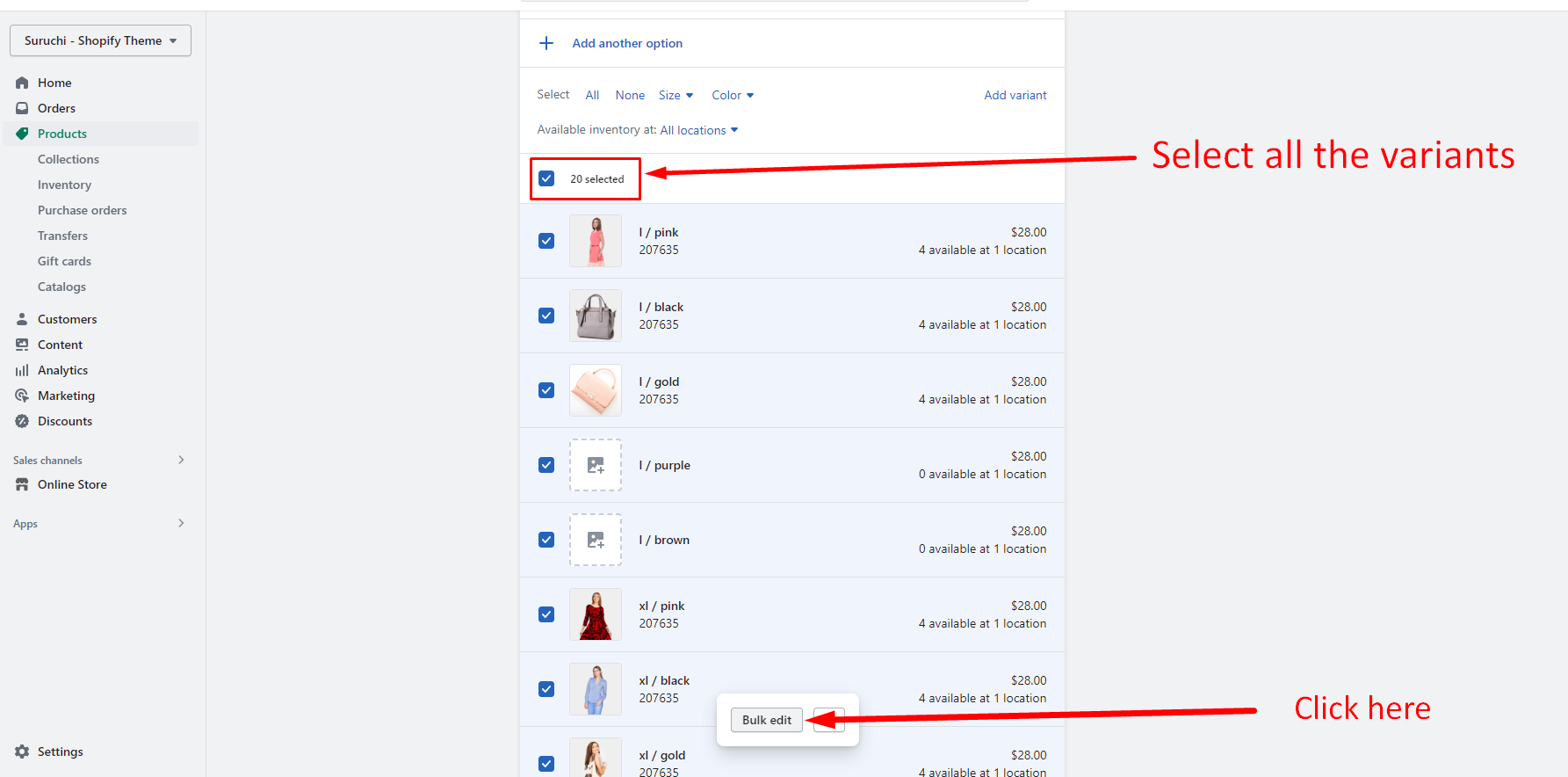
2. If the product has variants, then select a variant.
3. Make sure that **Multiple locations** selected in the **Inventory will be stocked on** the list.
4. In the **Inventory** section, click **Edit locations**.
5. Check the locations that stock the product, and uncheck the locations that don’t stock the product.
6. Click **Save**.
7. **\[**[**Learn more**](https://help.shopify.com/en/manual/locations/assigning-inventory-to-locations)**]**
   {% endhint %}

### Step 1

<figure><img src="https://content.gitbook.com/content/TsBtmFQxtPZrKf7veaAQ/blobs/TOyYqpeg0KGWNS59TW0n/location_inventory_1.png" alt=""><figcaption></figcaption></figure>

### Step 2

<figure><img src="https://content.gitbook.com/content/TsBtmFQxtPZrKf7veaAQ/blobs/XzNYHWoCd6di5gDkbSER/location_inventory_2.png" alt=""><figcaption></figcaption></figure>

### Step 3

<figure><img src="https://content.gitbook.com/content/TsBtmFQxtPZrKf7veaAQ/blobs/gKyDxzfUKCK8DNFid7Bz/location_inventory_3.png" alt=""><figcaption></figcaption></figure>

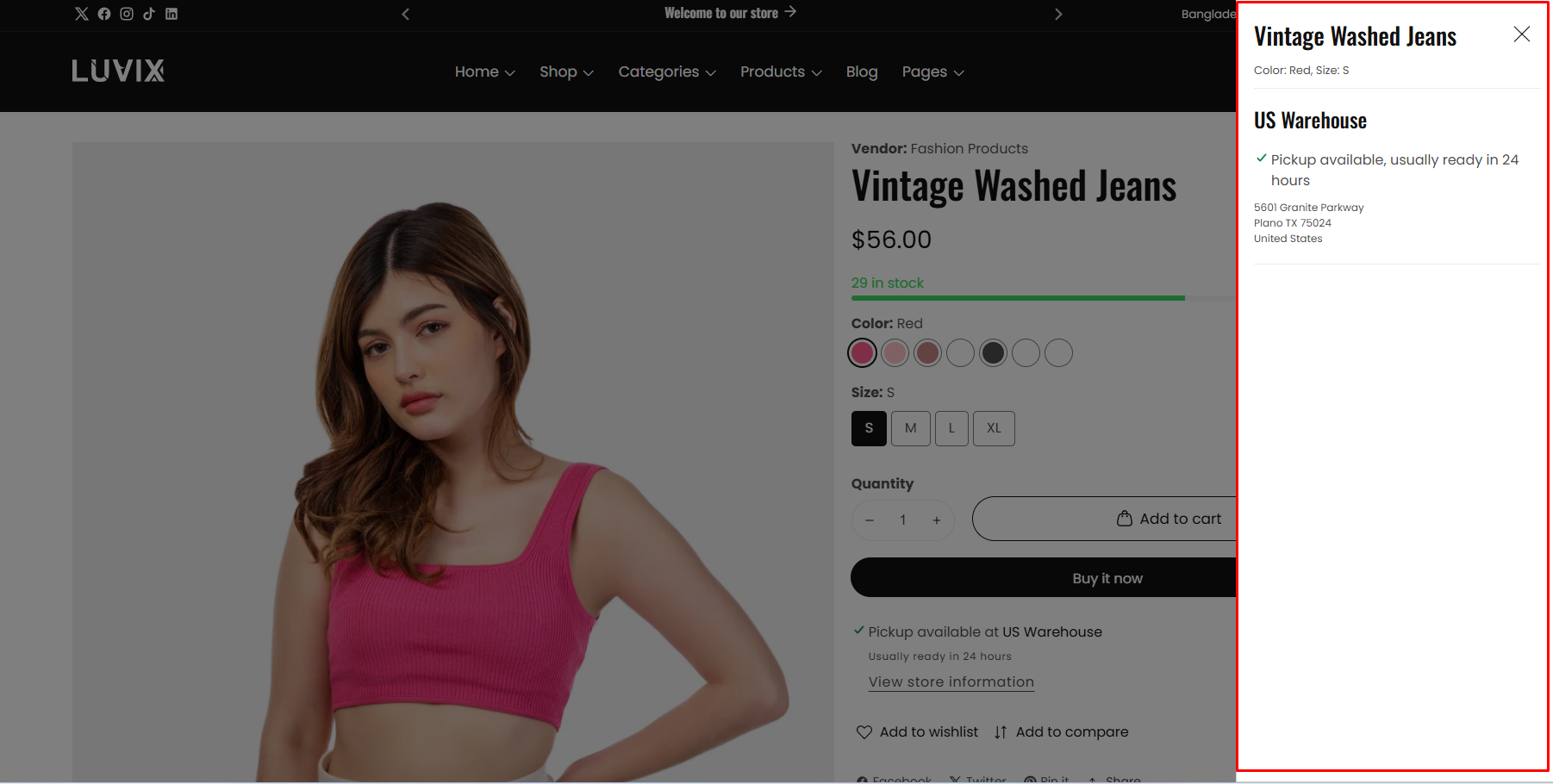
## Final local pickup demo

<figure><img src="https://2658914724-files.gitbook.io/~/files/v0/b/gitbook-x-prod.appspot.com/o/spaces%2FTsBtmFQxtPZrKf7veaAQ%2Fuploads%2FAsZtHlZ3zNaEriuQIijs%2FScreenshot_98.png?alt=media&#x26;token=73a5ca02-4cf2-4e1f-a082-ecbd43417d80" alt=""><figcaption></figcaption></figure>

<figure><img src="https://2658914724-files.gitbook.io/~/files/v0/b/gitbook-x-prod.appspot.com/o/spaces%2FTsBtmFQxtPZrKf7veaAQ%2Fuploads%2FkNzYy0ZxJtGUM7ZiHHdj%2FScreenshot_99.png?alt=media&#x26;token=dc717822-c206-4748-b25a-59fa19922423" alt=""><figcaption></figcaption></figure>