# How to update Luvix Theme?
## Make a copy of your current theme as a backup:
Before initiating any theme updates, it is crucial to duplicate your work as a precautionary measure. In case any errors are encountered, the duplicated (backup) version can be used to restore the original functionality and styling.
{% hint style="success" %}
**Take the following steps:**
1. In your Shopify admin > **Online store**, click **Actions**.
2. Select **Duplicate**.
3. Rename the copied file.
{% endhint %}
### Get the latest Luvix version
Check out and [**download**](https://themeforest.net/downloads) the most recent version of Luvix from Themeforest.
To know how to find and download the theme file, [**see here**](https://themihub.gitbook.io/luvix-theme/getting-started/how-to-install-luvix-theme)
### Upload the new version to your Shopify store
After obtaining the theme file, you can proceed to upload it to your Shopify store. **Take the following steps:**
1\. First login to the **Shopify dashboard** and go to the "**Online Store**"
2\. In the **Theme library**, select **Add theme** > **Upload zip file.**
### Move the theme configuration
To transfer the theme configuration to your updated version, follow the steps below.
{% hint style="success" %}
**Take the following steps:**
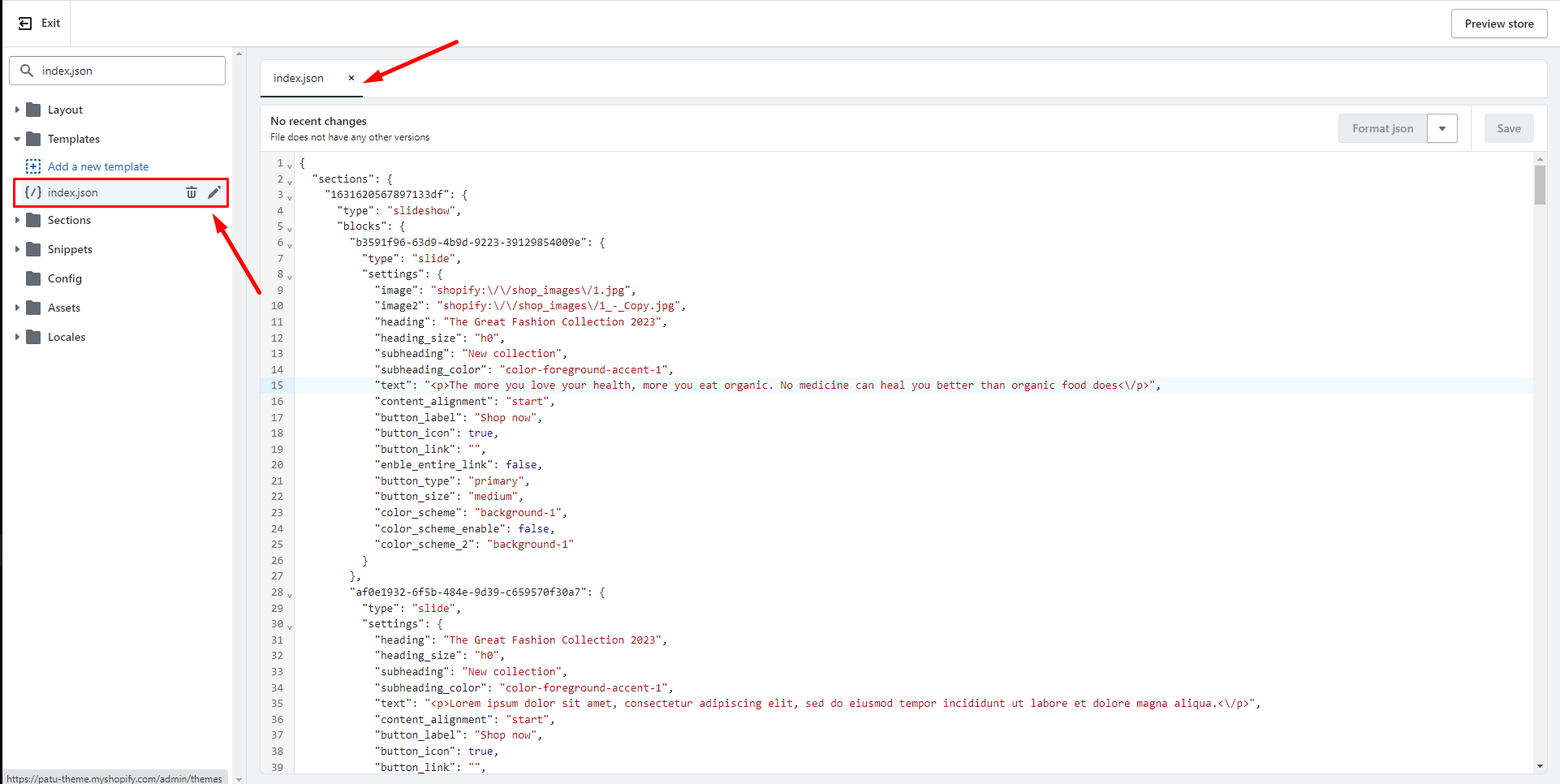
1. Find your old theme > select **Actions** > **Edit code.**
2. Open the file **Templates/index.json** & copy the entire code on this file.
3. Paste the content you previously copied into the corresponding file of the updated version of the theme.
{% endhint %}
{% hint style="success" %}
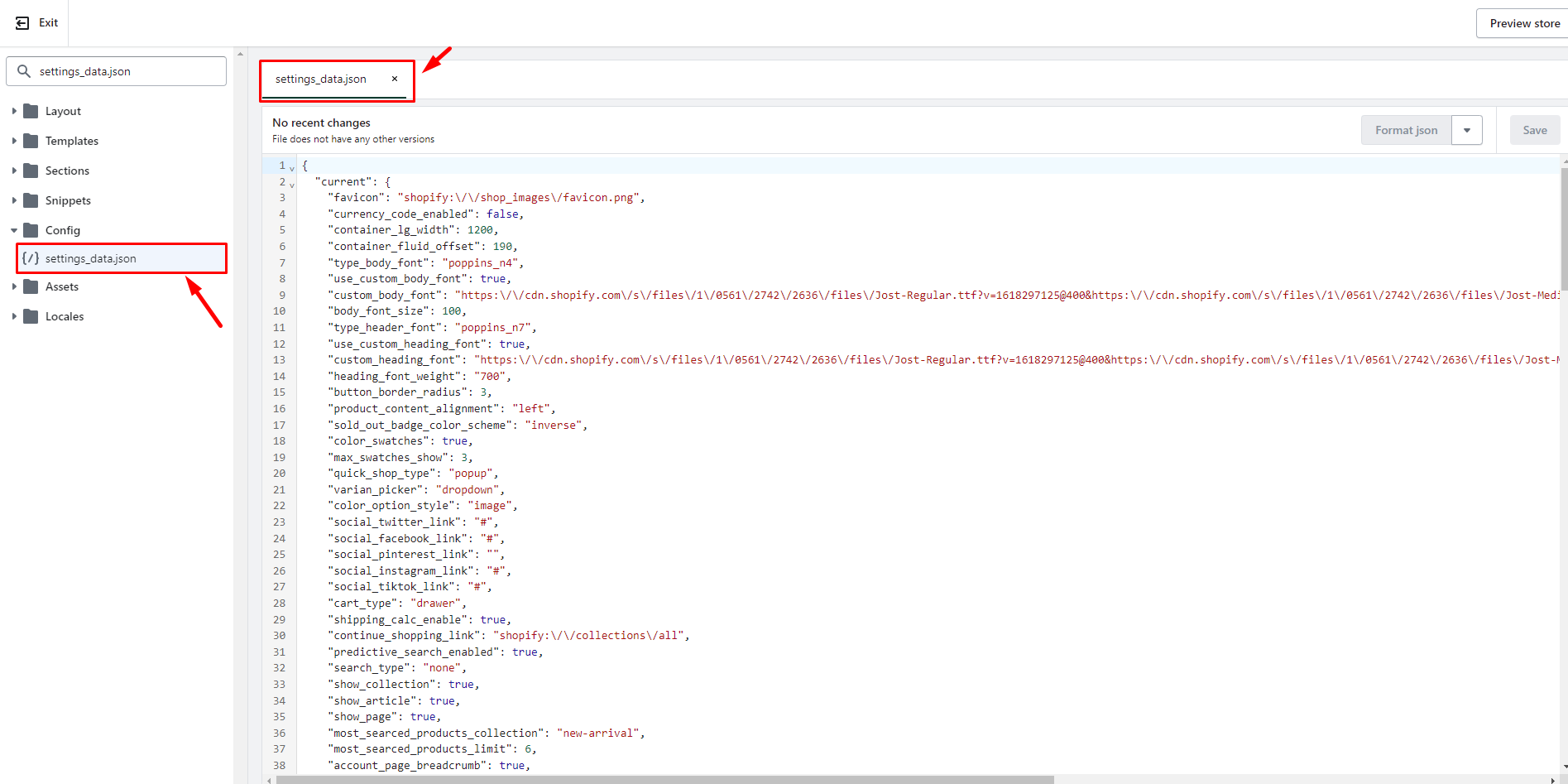
4\. Repeat for the **Config/settings\_data.json** file. Copy the entire code from the previous theme and paste it into the new one.
{% endhint %}
{% hint style="success" %}
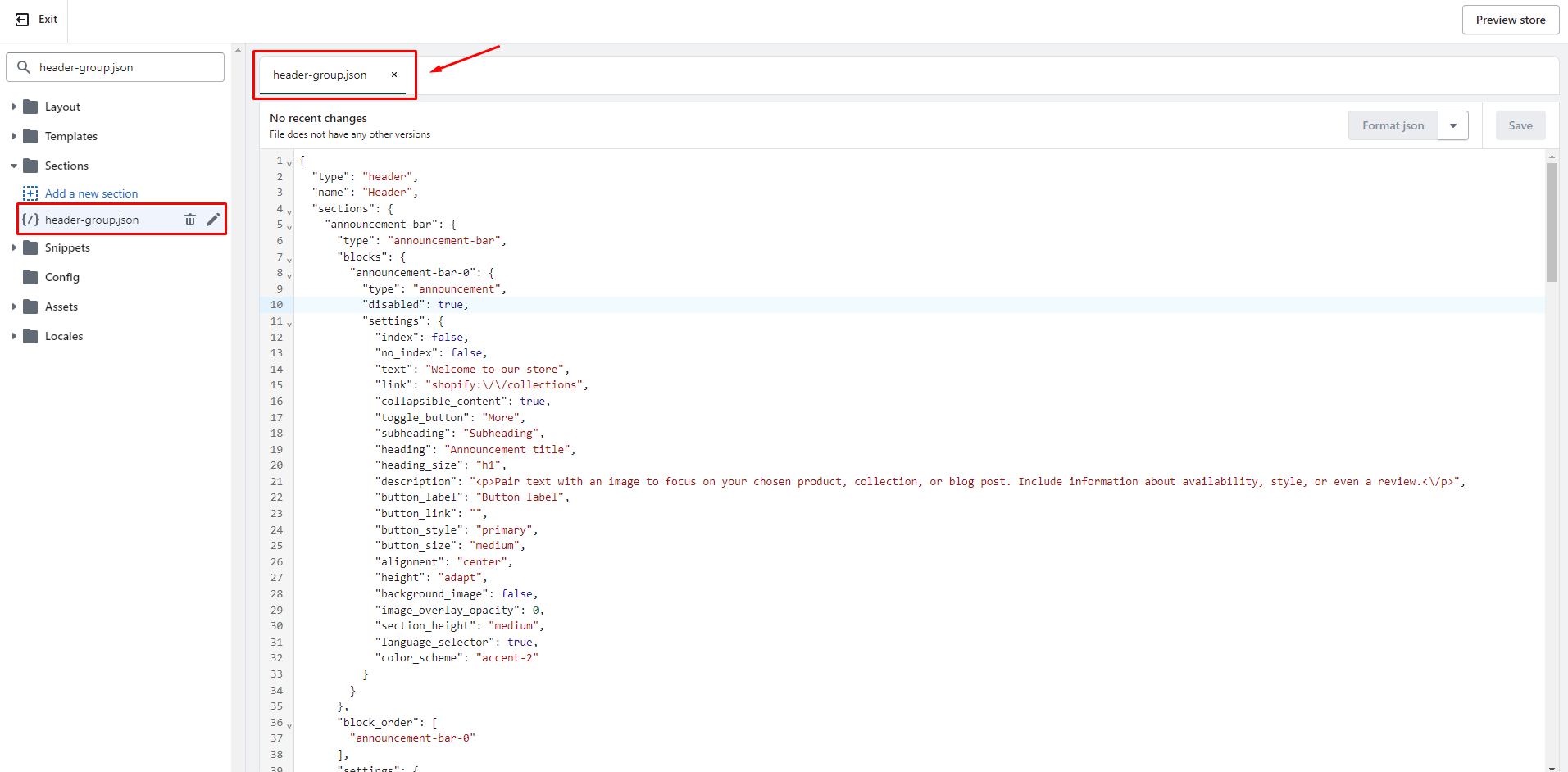
5\. Repeat for the **Sections/header\_group.json** file. Copy the entire code from the previous theme and paste it into the new one.
{% endhint %}
{% hint style="success" %}
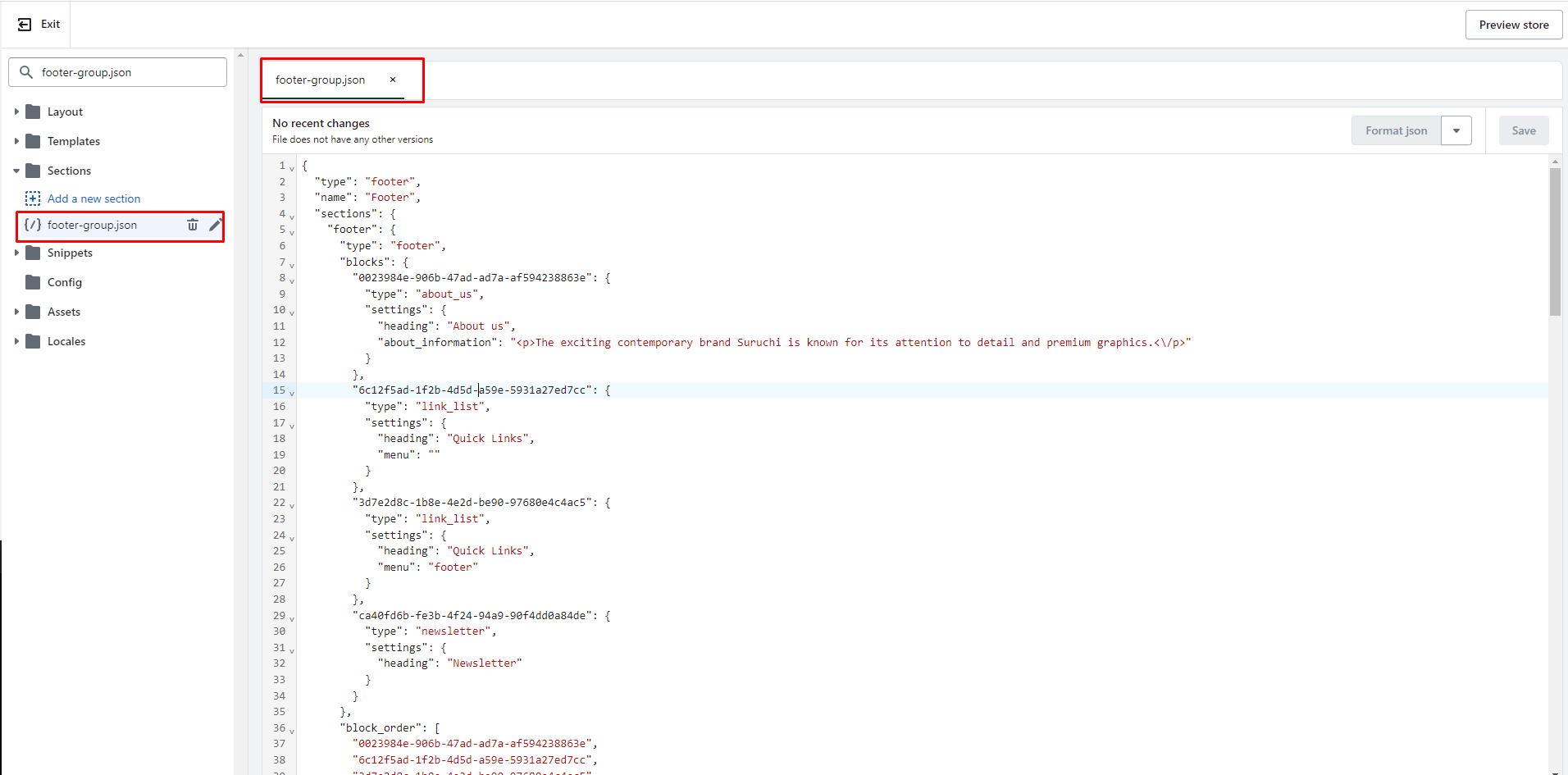
Repeat for the **Sections/footer\_group.json** file. Copy the entire code from the previous theme and paste it into the new one.
{% endhint %}
### Move your pages
{% hint style="success" %}
**Take the following steps:**
1. Find your old theme > select **Actions** > **Edit code.**
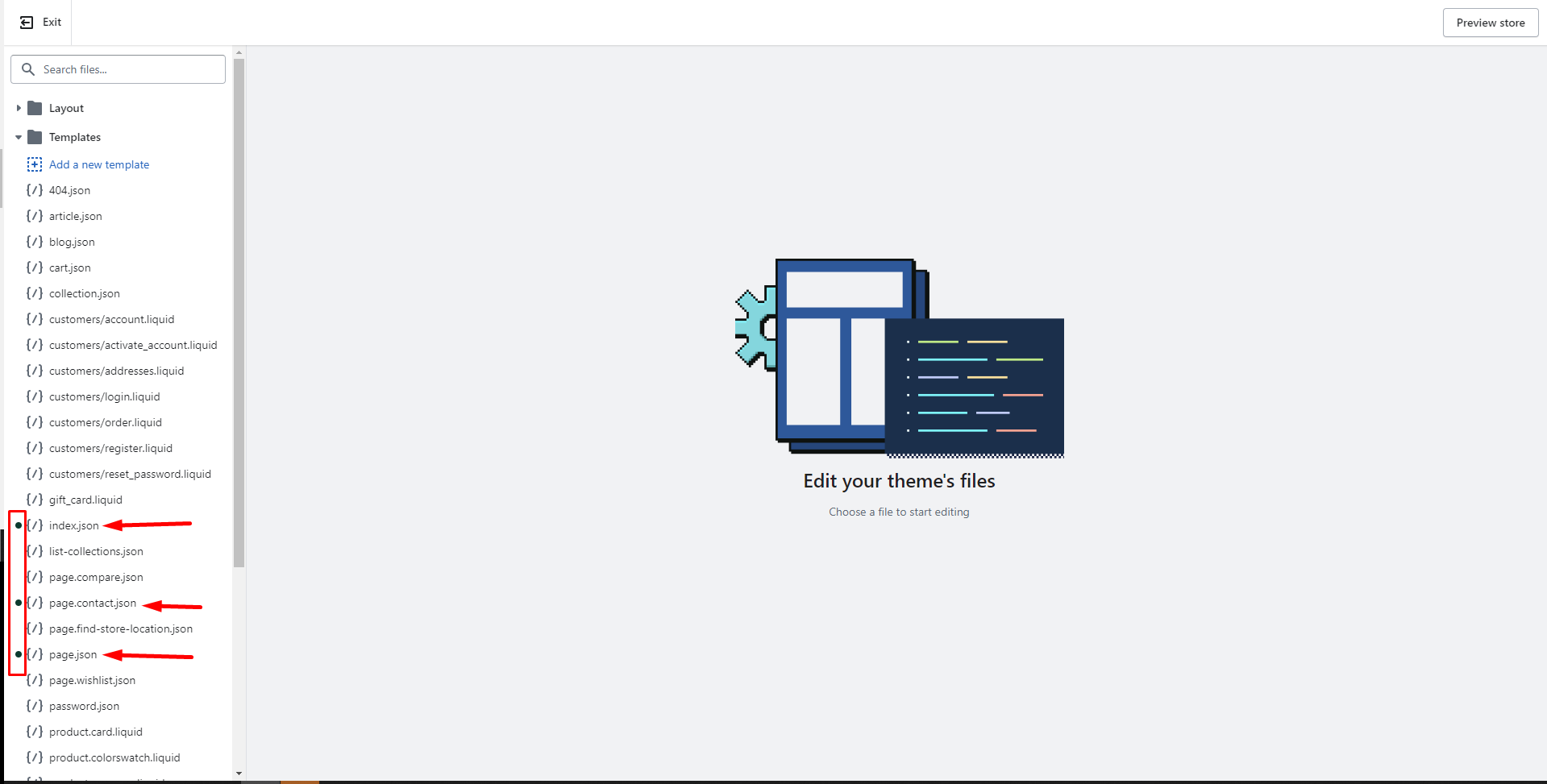
2. Copy the **.json** files with a **green dot** in the **Templates** folder and move them to the new updated theme.
The files you've modified are those with a green dot.
{% endhint %}
### Move the translation file
Follow the steps below if your store has multiple languages and you have configured the translation files.
{% hint style="success" %}
**Take the following steps:**
* Find your old theme > select **Actions** > **Edit code.**
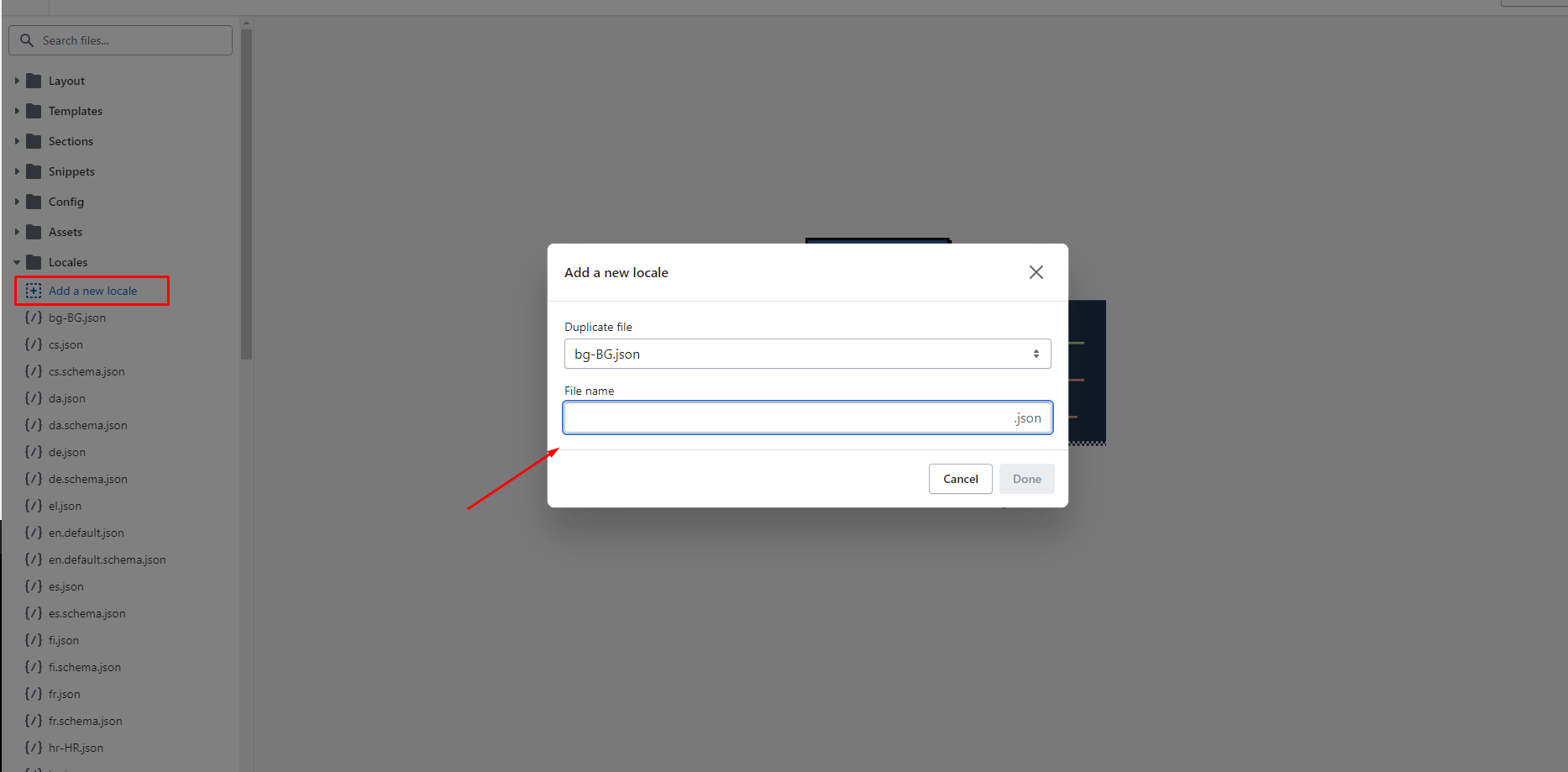
* Locate the **Locales** folder, choose the language you want to use, and copy the translation file.
* Go to **Actions > Edit code** in your new version and **Add a new locale** with the language you copied.
* Paste the content to your new file.
{% endhint %}
## IMPORTANT NOTE
{% hint style="danger" %}
Your code changes won't be included because one or more changes conflict with an update. After the updated theme is added to your theme, you will be able to copy your code over or re-configure some apps. **\[**[**Learn more**](https://help.shopify.com/en/manual/online-store/themes/managing-themes/updating-themes#manual-updates)**]**
{% endhint %}
## Video Tutorials
{% embed url="" %}