# Purchase code Verify

## Activate purchase code <a href="#activate-purchase-code" id="activate-purchase-code"></a>

{% hint style="success" %}
**Steps:**

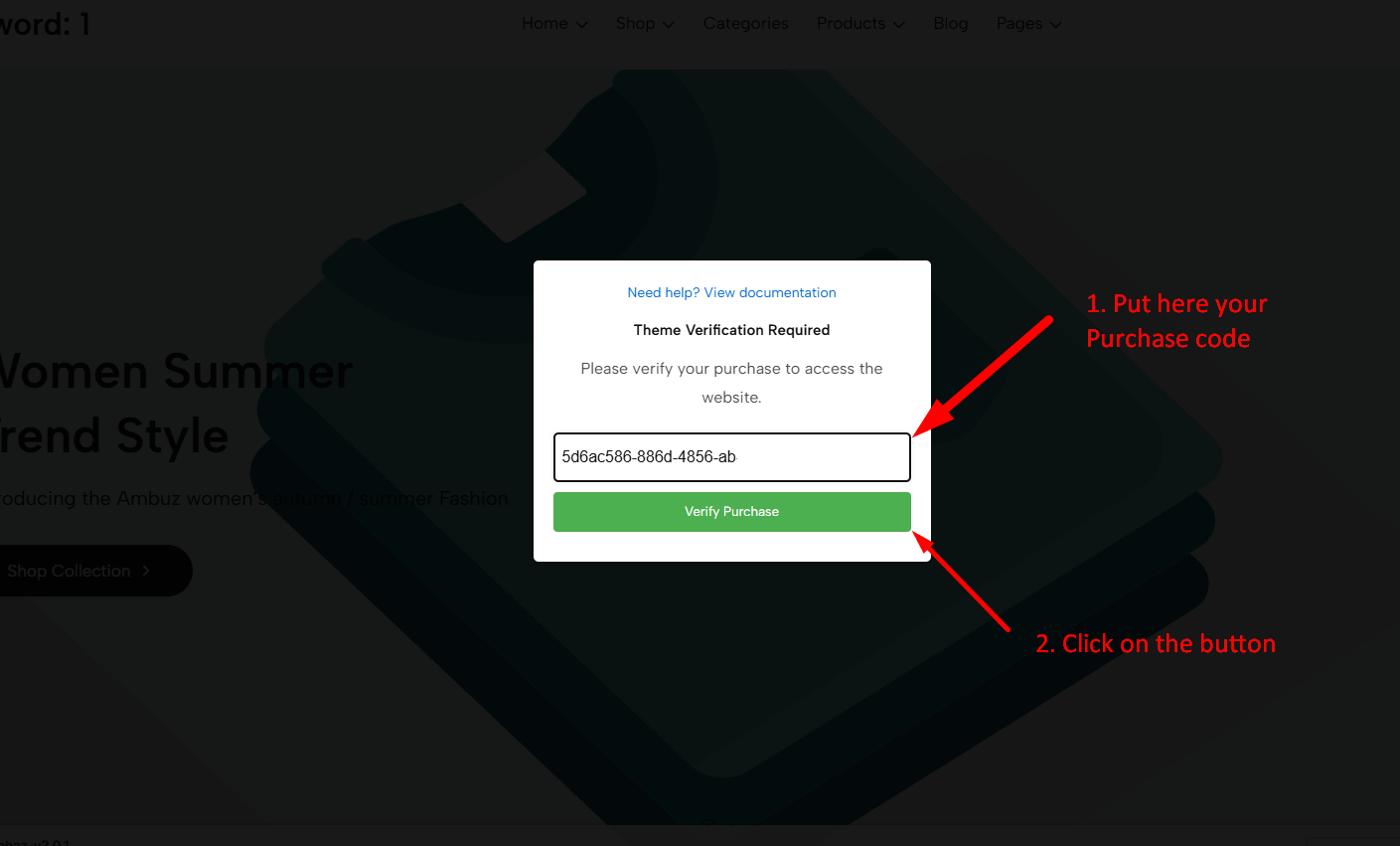
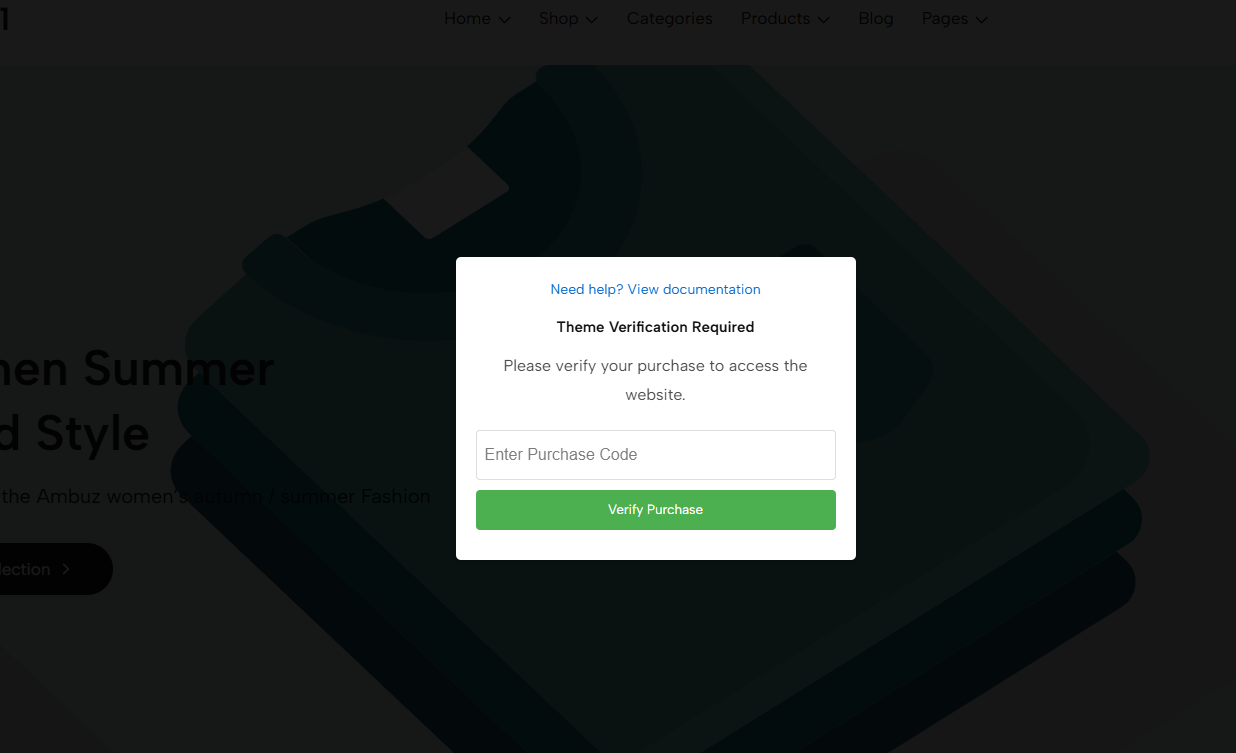
1. Download your **purchase code.** [**Where Is My Purchase Code?**](#where-is-my-purchase-code)
2. Enter your purchase code
3. Then click on the "**Verify Purchase**" button<br>
   {% endhint %}

<figure><img src="https://content.gitbook.com/content/TsBtmFQxtPZrKf7veaAQ/blobs/YttMPeu56PmBCU78XABj/purchase-100.png" alt=""><figcaption></figcaption></figure>

<figure><img src="https://content.gitbook.com/content/TsBtmFQxtPZrKf7veaAQ/blobs/WrSrLXhY6o99voUVHXAF/purchase01.png" alt=""><figcaption></figcaption></figure>

## Remove purchase code <a href="#remove-purchase-code" id="remove-purchase-code"></a>

{% hint style="success" %}
**Steps:**

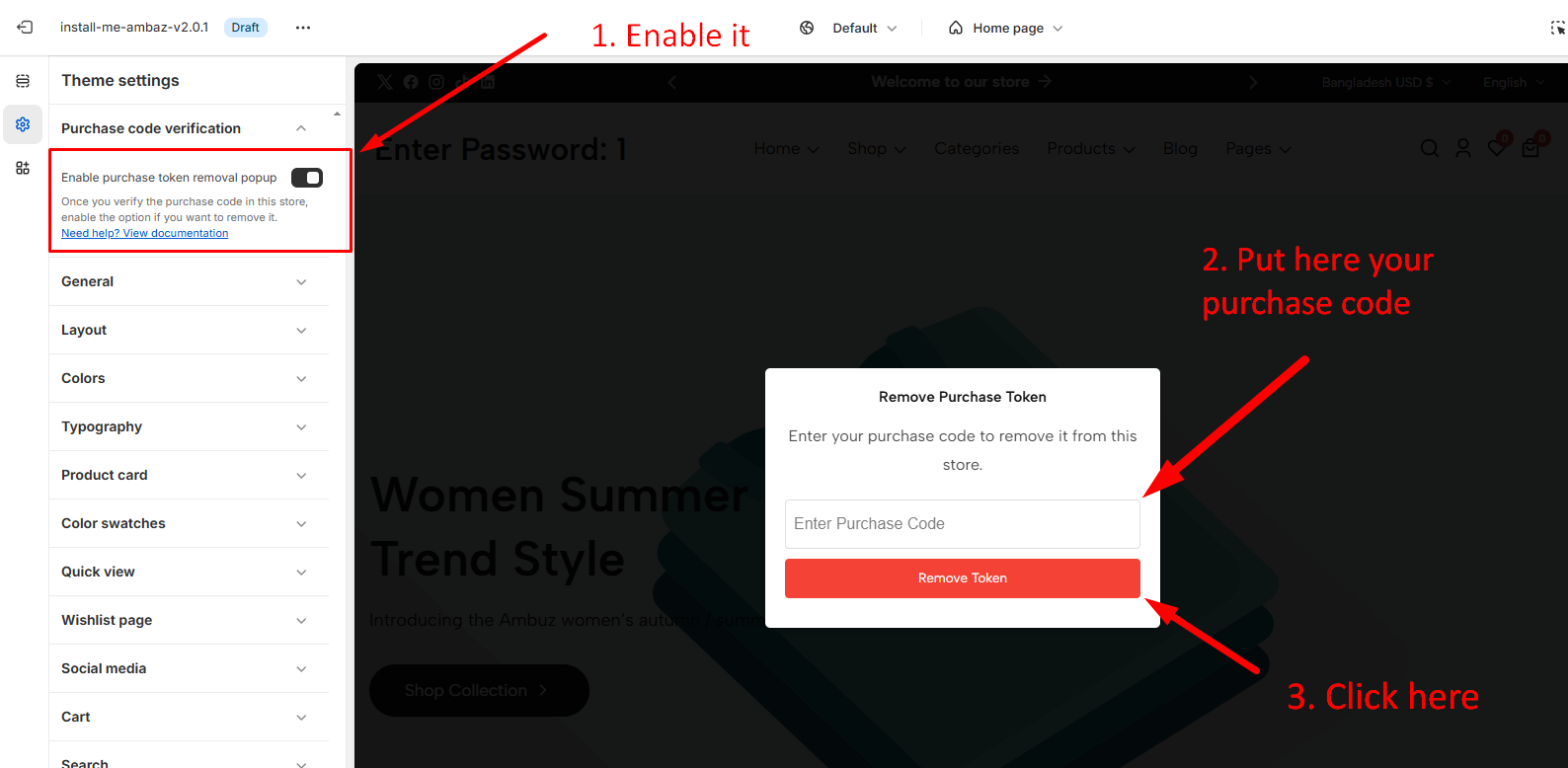
1. From your admin, click on **Online Store > Themes > Customize**
2. Click on **Theme Setting** > **Purchase code verification**
3. **Enable purchase token removal popup**
4. Enter your purchase code, [**Where Is My Purchase Code?**](#where-is-my-purchase-code)
5. Then click on the "**Remove token**" button
   {% endhint %}

<figure><img src="https://2658914724-files.gitbook.io/~/files/v0/b/gitbook-x-prod.appspot.com/o/spaces%2FTsBtmFQxtPZrKf7veaAQ%2Fuploads%2FcQmsfEVSvNCm59D7NAov%2FScreenshot_3.png?alt=media&#x26;token=e5b9a674-a2ee-4c82-b7ef-397a2d5f8beb" alt=""><figcaption></figcaption></figure>

<figure><img src="https://content.gitbook.com/content/TsBtmFQxtPZrKf7veaAQ/blobs/c3bXJTurtq27cIZBXQbg/remove-token.png" alt=""><figcaption></figcaption></figure>

## Where Is My Purchase Code?

### How to find your purchase code <a href="#purchase-code" id="purchase-code"></a>

* Check details on this Envato official page - <https://help.market.envato.com/hc/en-us/articles/202822600-Where-Is-My-Purchase-Code>

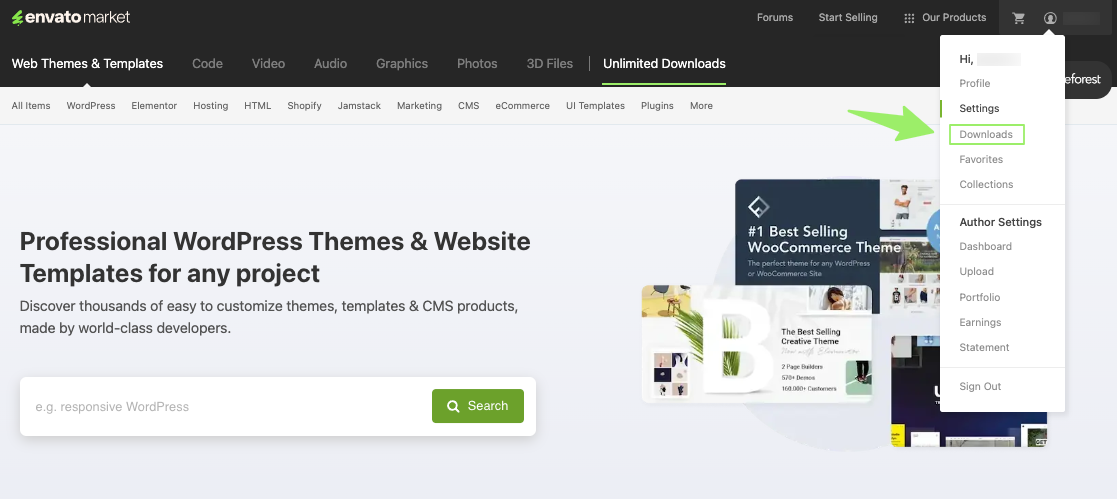
1. Log into your [Envato Market account](https://themeforest.net/sign_in).
2. Hover the mouse over your username at the top of the screen.
3. Click ‘Downloads’ from the drop-down menu.

<figure><img src="https://content.gitbook.com/content/TsBtmFQxtPZrKf7veaAQ/blobs/O6vju3UDE2FibhuuAx57/image.png" alt=""><figcaption></figcaption></figure>

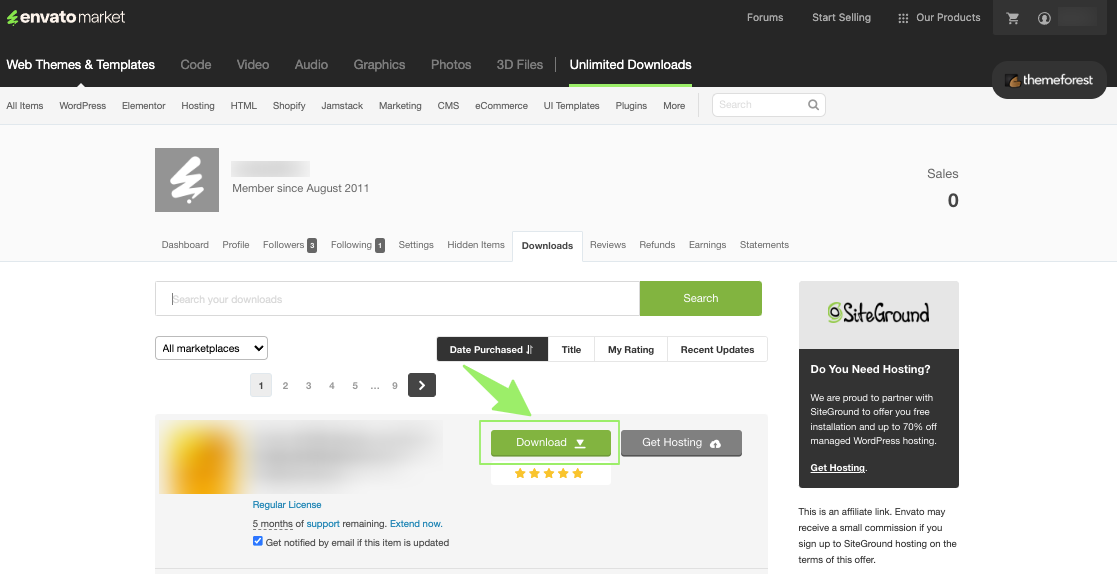
4. Click 'Download' next to the item for which you need the purchase code.

<figure><img src="https://content.gitbook.com/content/TsBtmFQxtPZrKf7veaAQ/blobs/unLDuTcNV0rJSOt8MtRR/image.png" alt=""><figcaption></figcaption></figure>

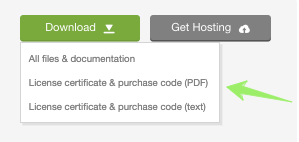
5. Click ‘License certificate & purchase code’ (available as PDF or text file).
<figure><img src="https://content.gitbook.com/content/TsBtmFQxtPZrKf7veaAQ/blobs/YCgndZHXYafzwIE9FKa8/image.png" alt=""><figcaption></figcaption></figure>