# Compare page

## What is a compare page?

The Compare page is a feature commonly found in some Shopify themes and is used to display a side-by-side comparison of products. It allows customers to compare multiple products based on their specifications, features, pricing, and other relevant details.<br>

<figure><img src="https://2658914724-files.gitbook.io/~/files/v0/b/gitbook-x-prod.appspot.com/o/spaces%2FTsBtmFQxtPZrKf7veaAQ%2Fuploads%2FVXIqbB8pV0gGfh1YKplX%2FScreenshot_90.png?alt=media&#x26;token=09170673-1995-4635-a1bc-b473f9e09ad8" alt=""><figcaption></figcaption></figure>

## Create wishlist page

{% hint style="success" %}

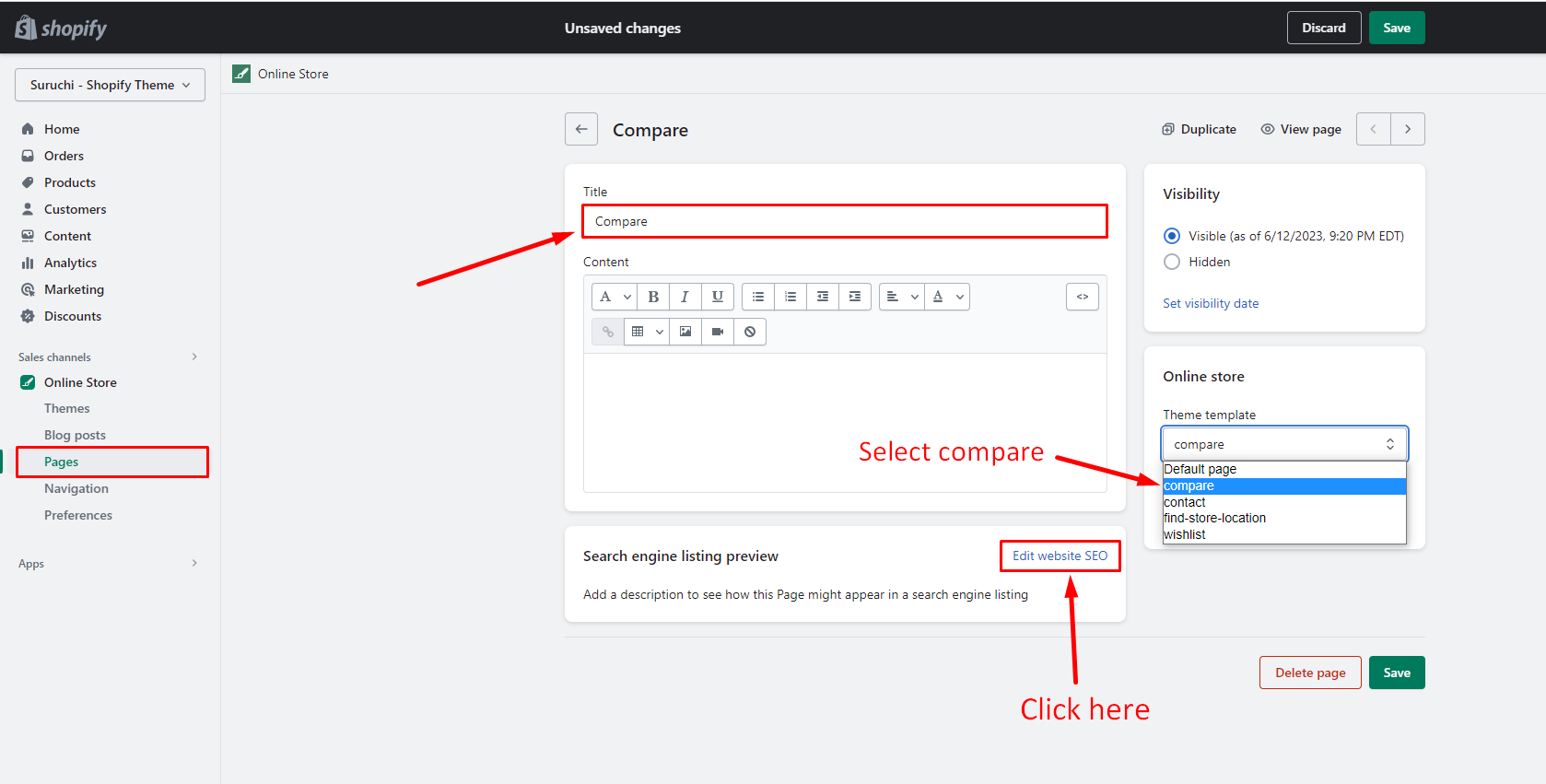
* From your Shopify admin, go to **Online Store** > [**Pages**](https://www.shopify.com/admin/pages).
* Click **Add page**.
* Enter a title: **Compare**
* Set **Visibility**
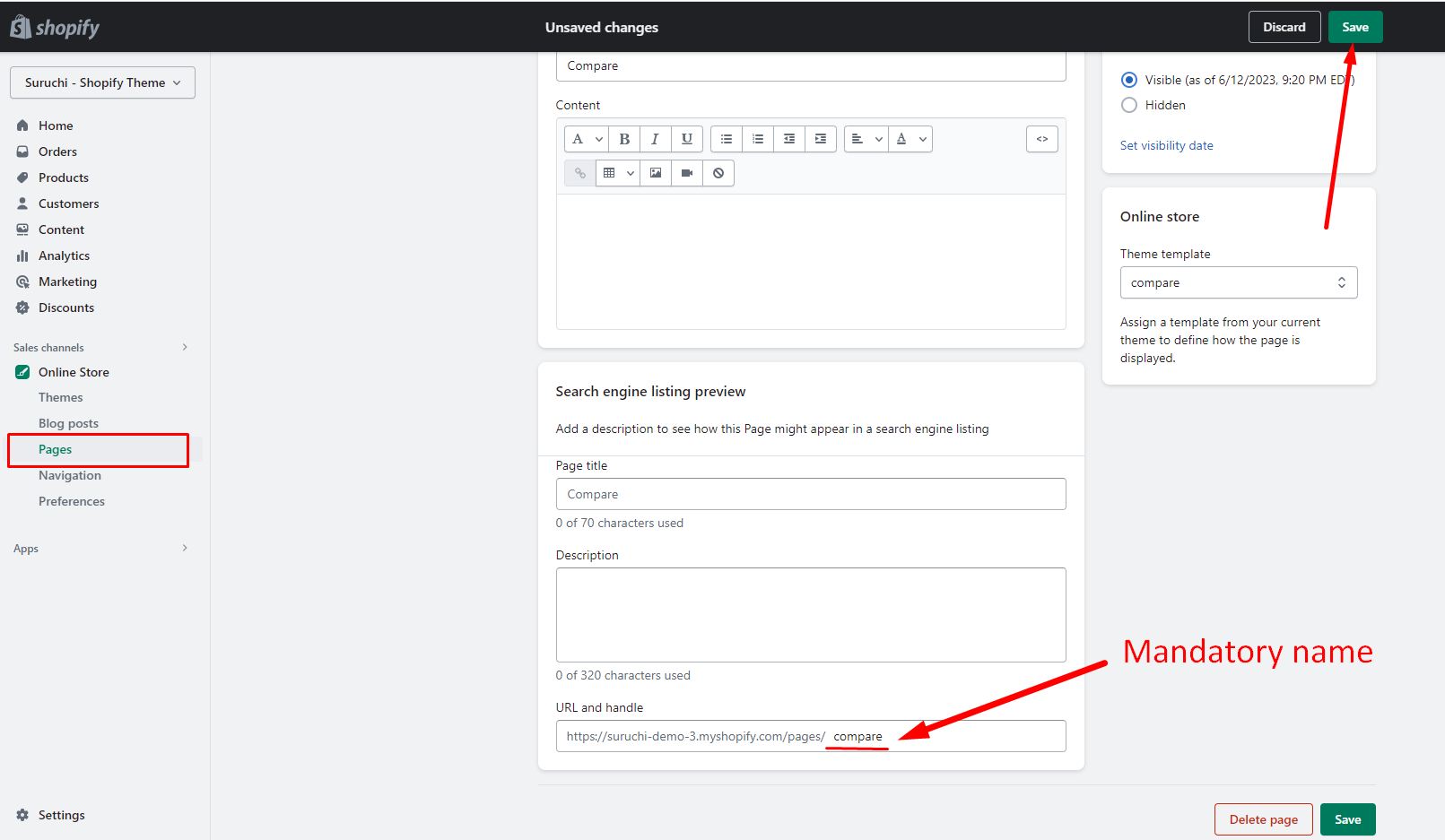
* Select **Theme template: compare**
* URL and handle: **/pages/compare** (<mark style="color:red;">**Mandatory**</mark>)
* Click **Save**.
  {% endhint %}

## Step 1

<figure><img src="https://2658914724-files.gitbook.io/~/files/v0/b/gitbook-x-prod.appspot.com/o/spaces%2FTsBtmFQxtPZrKf7veaAQ%2Fuploads%2FR2LOzwJXetV5PNrvsF9u%2FScreenshot_87.png?alt=media&#x26;token=260d71d4-6e8e-4275-9a71-924e6da2aa61" alt=""><figcaption></figcaption></figure>

## Step 2

<figure><img src="https://content.gitbook.com/content/TsBtmFQxtPZrKf7veaAQ/blobs/qwg8DYNHRbrVsWACnEmD/compare-1.png" alt=""><figcaption></figcaption></figure>

## Step 3

<figure><img src="https://content.gitbook.com/content/TsBtmFQxtPZrKf7veaAQ/blobs/UwVwOEC2dCFaxwT60XuX/compare-2.png" alt=""><figcaption></figcaption></figure>