> For the complete documentation index, see [llms.txt](https://themihub.gitbook.io/isotech-shopify-theme/llms.txt). Markdown versions of documentation pages are available by appending `.md` to page URLs; this page is available as [Markdown](https://themihub.gitbook.io/isotech-shopify-theme/other-pages/compare-page.md).
# Compare page
A complete guide to setup compare page
## What is a compare page?
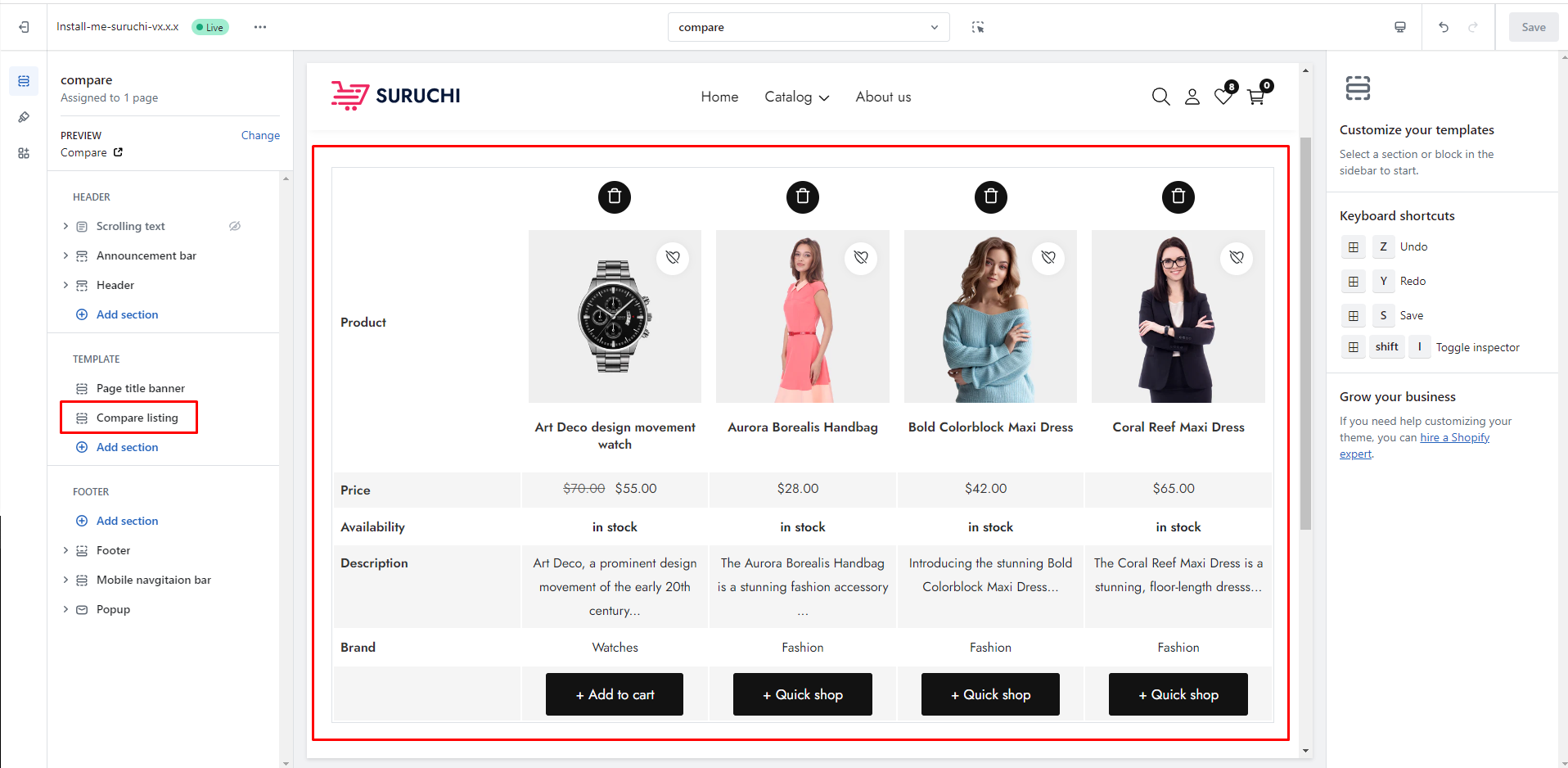
The Compare page is a feature commonly found in some Shopify themes and is used to display a side-by-side comparison of products. It allows customers to compare multiple products based on their specifications, features, pricing, and other relevant details.
## Create wishlist page
{% hint style="success" %}
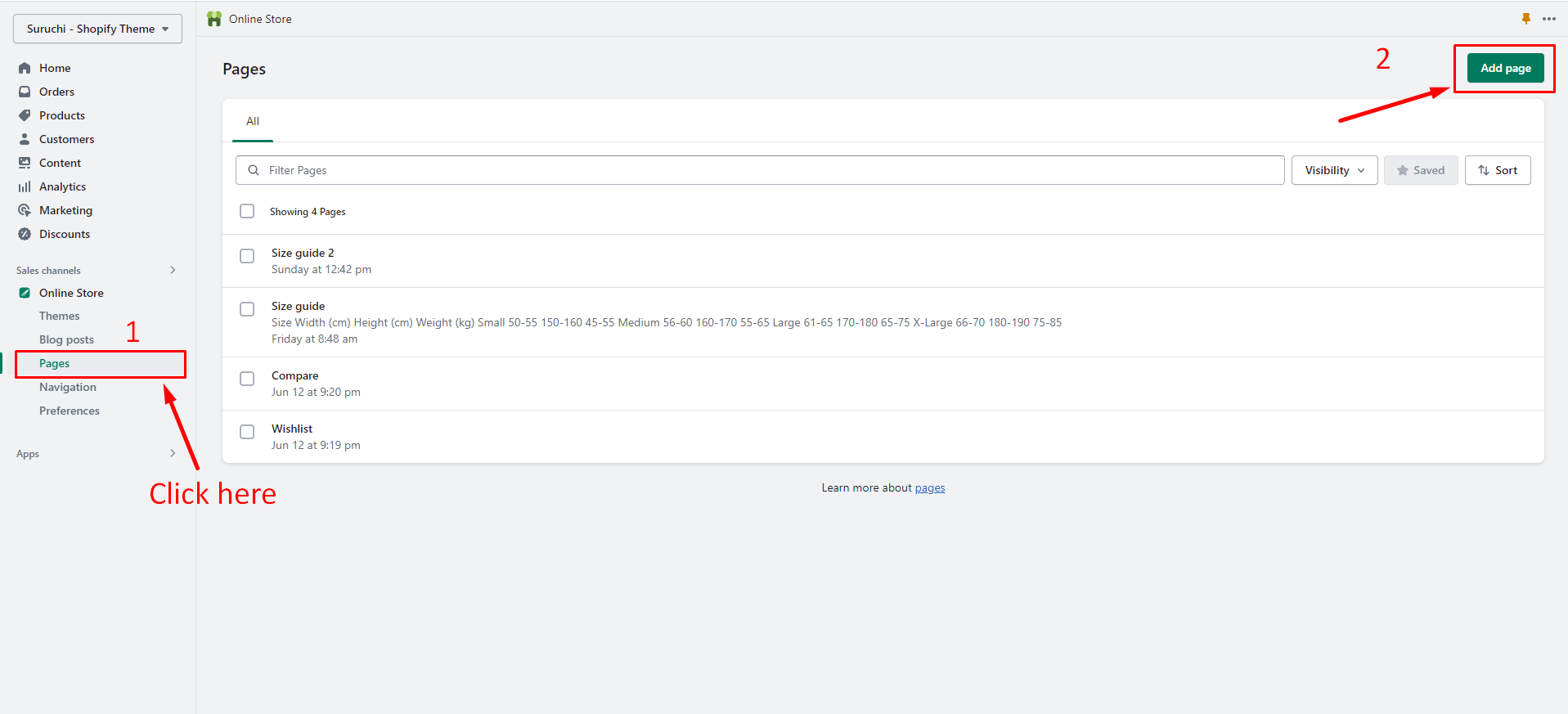
* From your Shopify admin, go to **Online Store** > [**Pages**](https://www.shopify.com/admin/pages).
* Click **Add page**.
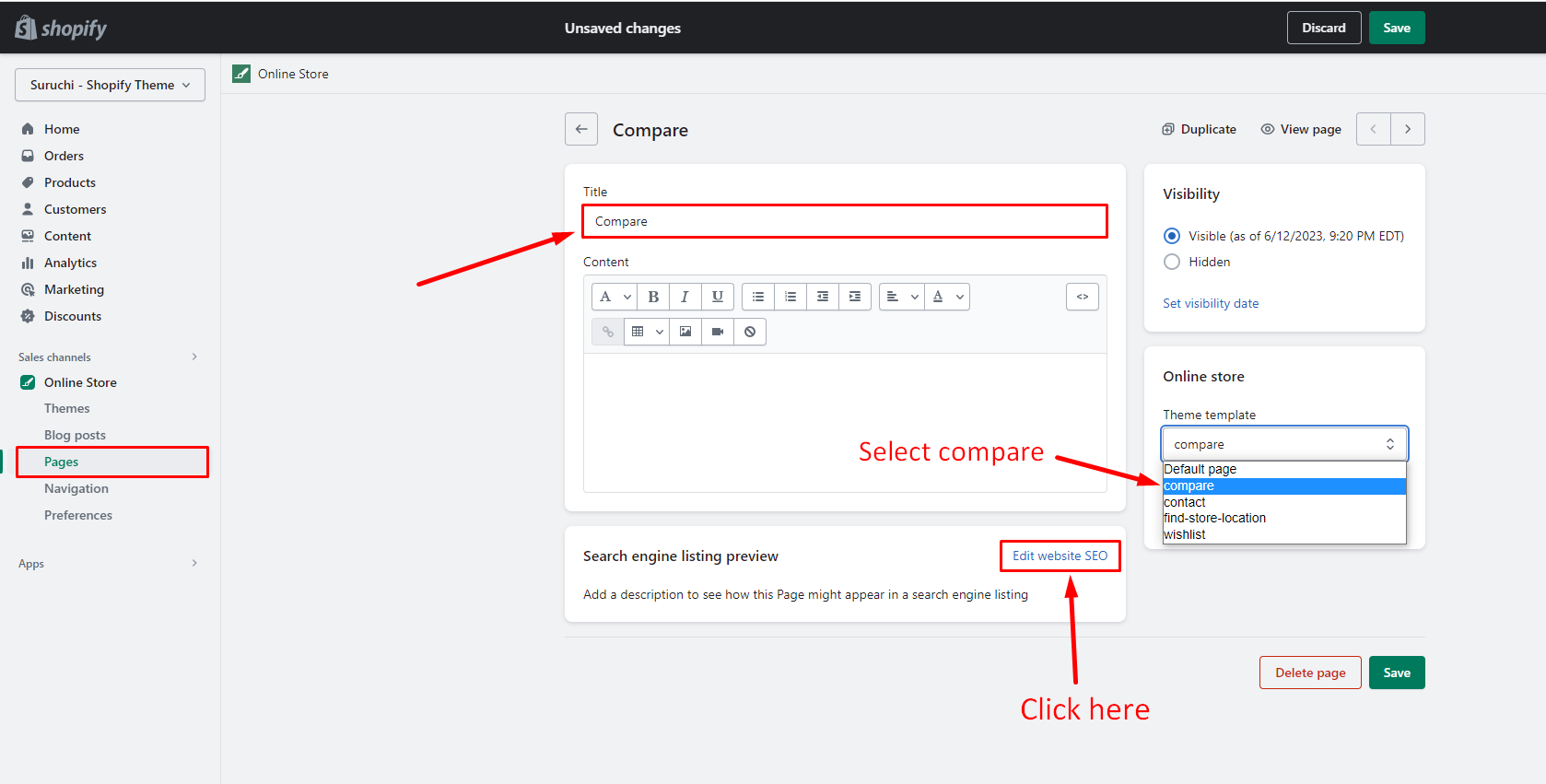
* Enter a title: **Compare**
* Set **Visibility**
* Select **Theme template: compare**
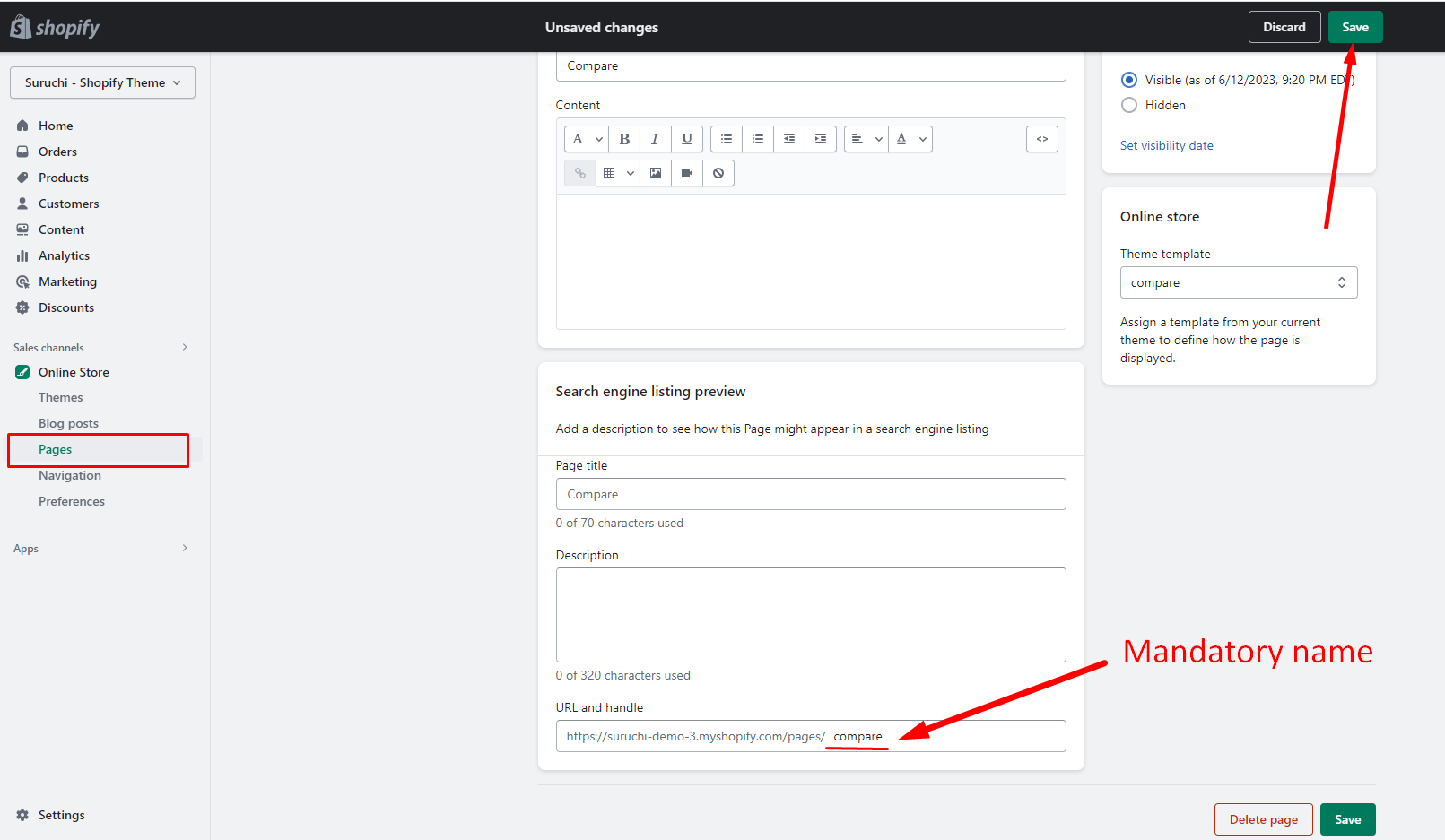
* URL and handle: **/pages/compare** (**Mandatory**)
* Click **Save**.
{% endhint %}
## Step 1
## Step 2
## Step 3